Enabling Sharing
The Sharing settings, shown below, let you enable sharing and to require authentication for remote access.
Organizer Settings dialog
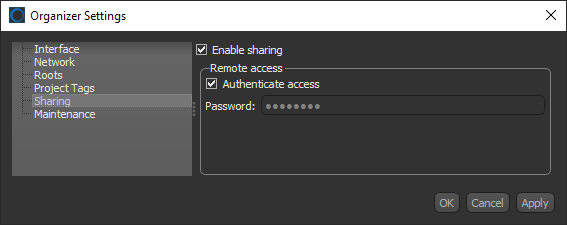
You can specify which folders will be shared whenever you add or edit your root folders (see Adding and Editing Root Folders).
 How to Enable Sharing
- Click the Settings button
 on the left sidebar of the Organizer dialog.
The Organizer Settings dialog appears.
- Click Sharing in the Navigation pane.
The Sharing panel appears in the dialog.
- Check the Enable sharing option, if you want to share your projects with other users.
Note See Adding and Editing Root Folders for information about adding shared roots.
- Check the Authenticate access option and then enter a password in the Password edit box, if you can require authentication for remote access.
Note The selected password should respect the cybersecurity guidelines set by your institution or facility.
Note You will need to supply the selected password, as well as your IP address and configured server port, to any users authorized to access your shared projects. See Configuring the Network Settings for information about IP addresses and server ports.
- Click Apply or OK to save your changes.


